
PRB: The XLL+ Function Wizard Toolbar has disappeared in Visual Studio 6
Reference: Q0010
Article last modified on 10-Sep-2002
The information in this article applies to:
- XLL+ for Visual Studio 6 - 3, 4.1, 4.2, 4.3.1
The XLL+ Function Wizard Toolbar has disappeared in Visual Studio 6
Issue
When I open Visual Studio 6, I cannot see the XLL+ Function Wizard toolbar. How can I make it appear again?
Summary
- Ensure that the XLL+ add-in is checked in the Add-ins and Macros tab of the Tools - Customize dialog.
- If the add-in is already checked, but the toolbar is still not visible, ensure that the XLL+ toolbar is checked in the Toolbars tab of the Tools - Customize dialog.
Add-ins and Macros tab
In MS DevStudio, use the Tools - Customize menu to invoke the Customize dialog, and select the Add-ins and Macros tab.
If the list box does not contain an entry named "XLL+ Function Wizard 4.1" (or a later version number), then you should reinstall XLL+.
If the listbox contains an entry named "XLL+ Function Wizard 4.1" (or a later version number), then put a check next to it, as shown below.
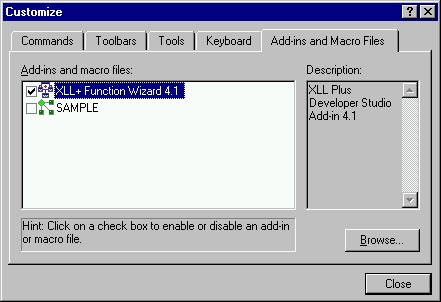
When you click Close to dismiss the dialog, the XLL+ Function Wizard toolbar will appear in Visual Studio.
Toolbars tab
If the listbox entry in the Add-ins and Macros tab is already checked, but the XLL+ toolbar is not visible, then it is likely that you (or perhaps another user on your machine) have closed it at some point.
In the Tools - Customize dialog, select the Toolbars tab. Scroll down the Toolbars listbox until a tool bar named "Toolbar1" is visible. Put a check next to it, as shown below, and click Close to dismiss the dialog. The XLL+ Toolbar should now be visible. Note that it will appear in the position it occupied when it was last used.
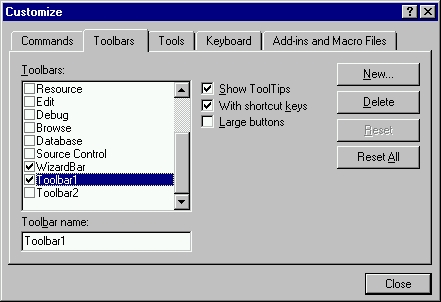
If the XLL+ toolbar has not appeared then repeat the process for any toolbar named "Toolbar2", "Toolbar3" etc, until the XLL+ toolbar appears.